
Before you begin
Capturing the best images within the FigsFlow Onboarding service
Image quality is the single biggest factor in verification speed. Follow these steps to ensure your document photo and selfie are accepted without delay.
Step 1
How to capture the best document image
Your document image must clearly show the entire data page, including the machine-readable zone at the bottom. Here’s what to do and what to avoid.
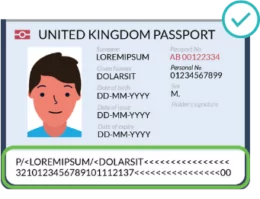
Capture a clear image of the Machine Readable Zone (MRZ) and whole data page
The Machine Readable Zone (MRZ) is the 2 lines of code at the bottom of the data page, made up of letters, numbers and chevrons. The MRZ contains security check digits. Your image needs to clearly include the whole of the MRZ and all information on the data page, including your photograph, in order for the TrustID service to validate it.
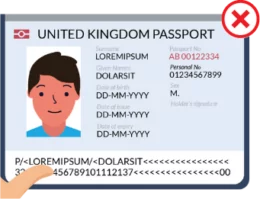
Avoid covering the Machine Readable Zone
Make sure nothing is covering the MRZ or your photograph. It’s OK to have your fingers or thumbs in the image, just not over the critical information.
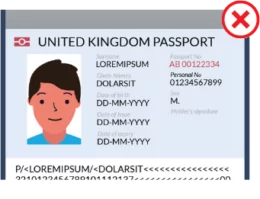
Avoid cutting off the MRZ
Make sure none of the MRZ is cut off and all characters are visible. Include all four corners of the data page in your image. A ‘border’ around your document image is fine!
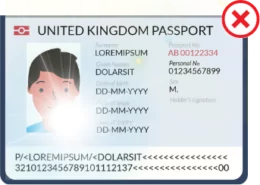
Watch out for glare
Natural lighting is best. Try to avoid bright sunlight or glare obscuring the MRZ or photograph on your document.
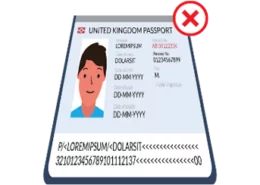
Capture your image squarely
Putting the document on a flat surface will help. It is more difficult to read the information if the image is angled away from the camera or taken too horizontally. It’s OK if we can see something holding the document.
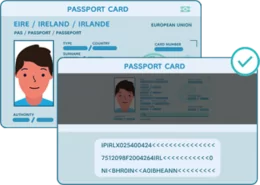
Capture an Irish Passport Card
When submitting an image of an Irish Passport Card, make sure you include clear photos of both the front and the back.
Step 2
How to optimise your 'selfie' image
To increase the chance of your selfie image being successful, please follow the steps below:

Stand in Front of a Dark Background
You can stand in front of a dark or patterned background, such as a wooden door. It’s not a passport photo so don’t worry about a white, plain background!

Avoid Bright Lights from Above or Behind You
Lighting needs to be consistent, and you should avoid a ‘spotlight’ effect.

Use Natural Lighting
Natural lighting is best. Avoid bright sunlight and make sure there’s no glare.

Lighting needs to be consistent, and you should avoid a ‘spotlight’ effect.
Make sure you are facing the camera and not turned to the side.

Take the Selfie at Eye Level
Make sure your whole face is in the image with a good ‘border’ around you. Don’t be too close or too far away.

Remove Anything that Covers Your Face
Remove peak caps or hats or anything that obscures your face.


Ready to submit your documents?
If your images meet the requirements above, you’re all set. Head back to complete your identity verification — it typically takes under two minutes.